
Partners who have selected the MALL feed connection type must complete several steps before they can begin selling. Once the business side of the process is complete—that is, after you’ve accepted the Terms and Conditions, submitted all required documents, and fulfilled other procedural requirements—you’ll have full access to all the features and functions of the MALL Partner Portal. Below you’ll find a complete guide on how to set everything up step by step so you can start selling.
We've also covered each of these topics in a tutorial video or a detailed article, which you'll find at the end of each thematic section.
If you'd like more information, each section includes links to helpful articles.
Important: It is necessary to follow all the steps described below. It is not possible to activate an account that is only partially set up.
Content:
- Basic account and contact settings
- Delivery settings
- Products and their upload
- How to work with orders
- Linking the e-shop
- What to do when I'm ready to start selling
- Billing information
- How to ask questions
Basic account and contact settings
For a successful launch, you first need to make some basic settings in your portal.
Setting up your accounts
After you register, the email you registered with is assigned as the administrator. This account has higher privileges when setting up your account.
It is possible to change the administrator account and it is also possible to give access to the portal to other employees or to allow access via other email addresses.
Contact and address settings
It is necessary to set up contacts in the portal so each role is assigned to at least one email address.
It is necessary to have the addresses listed in the portal so each role is assigned to at least one address.
Multiple roles can be assigned to the same address or email.
Notification settings
The MALL Partner portal offers you an option to turn on notification emails for specific situations for your convenience. We recommend that you set up and turn on these notifications. At the same time, we recommend that you visit the portal regularly and work with its different parts.
Sandbox account
It is important to save the login details for your sandbox account for future use. This account allows you to preview your products before they are published. It is also used to check that the products you have uploaded to the portal have all the right settings, such as the necessary parameters and their values. You always log in to your sandbox account on the MALL Partner page for your country.
Setting up your own delivery
Setting up suitable delivery option is one of the conditions for launching your products online. The division of shipments into smallbox and bigbox is governed by the conditions we have set and you can find the details in the article here.
Products and their upload
To upload products, you first need to know a few basic conditions. MALL specifies the basic conditions for the appearance of the product, the essential requirements for their categorization and parameters with the values they must contain. You can check all the changes you make to the products through the sandbox account we described above.
Product appearance
There are a few basic conditions for uploading products to MALL Partner portal, primarily to further promote your products in paid campaigns. Failure to comply with these conditions may result in your product being excluded from these campaigns and, in the worst case, even withdrawn from the site. By following as many of these conditions and recommendations as possible, you increase the possibility of successful sales of your products.
Requirements and Specifics of the MALL Feed
Before you upload your feed to the portal, there are several requirements—in addition to product data—that must be met. The MALL feed has a mandatory element structure in this regard. Your feed must contain these required elements. Both the product feed and the availability feed have their own specifications. These must be two separate feeds, each available at its own URL, which you will then upload to the portal.
You can find all the information about the structure of the MALL feed, including a sample feed available for download, in the article Instructions for connecting MALL XML feed.
More useful links: How to Create Variant Products, Introduction to the MALL Feed
Initial Setup and Configuration of the MALL Feed
If you have created a product and availability feed that meets the conditions set by MALL, it's time to upload the feeds to your portal and sync them by clicking the button „Add to Processing“.
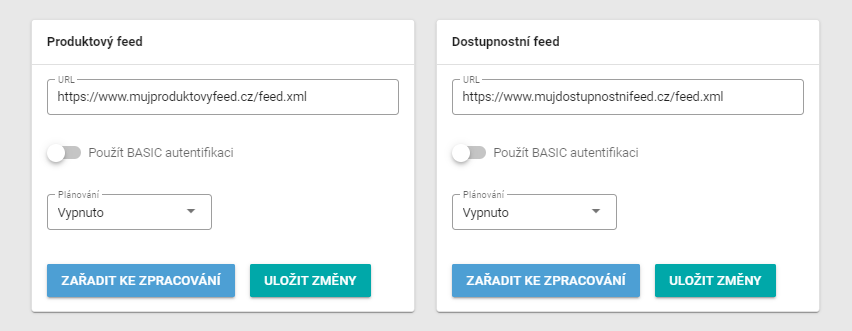
For a feed to run properly, all administrative and business requirements must be met. You can find out if your account is ready in the Partner menu. If your account is marked with a blue icon indicating the stage Testing the data can be run. If not, you first need to complete the procedural requirements.
„Statistics“ tab“
If you successfully imported a valid availability and product feed in the previous step, you can check their synchronization status in the adjacent tab labeled „Statistics“.

In the tab Statistics You'll find records of the synchronization of both of your feeds in a clear log. You can see whether the synchronization was successful or not in the Status column. Click the eye icon to view details about the synchronization of any feed and any errors that may have occurred.
Any product that has triggered an entry in the error log will not be imported from the feed into the MALL system; you must first resolve all errors associated with that product. For details on individual error messages and how to resolve them, see the article here.
Please note that our system validates products one element at a time; if it finds an error in any element, it creates an entry in the error log and moves on to the next product. Therefore, please always check your entire feed to ensure it complies with the feed specifications, which can be found here.
Categories Using the MALL Feed
Specifying the product category is one of the required elements for integration via the MALL feed.
When using the MALL feed, valid categories from the MALL category tree for the given country must be used. You can find the category tree in the portal under the menu Products -> Categories.

The brand is a part of the mandatory data in the upload of products to MALL. A product that does not have a MANUFACTURER element with the corresponding brand information in your feed will not be uploaded to our system.
Pu on your portal. The appropriate shipping options from those you have set up will then be assigned to these products.
More useful links: How to Create Variant Products, Introduction to the MALL Feed
Orders
As part of your operation on MALL Partner portal, a user-friendly environment for working with orders is provided for you. In addition, we have prepared a large number of add-ons that can make your work with orders easier. Which add-ons we offer for which systems can be found in the Services tab in your Partner Portal.
Before you start to sell on our website we recommend making a few test orders in your portal to see how the orders work.
Permalink
The last requirement that needs to be fulfilled before launching for sale is the linking of your Partner page on MALL with your e-shop. The Partner page serves as a unique page within MALL Partner just for your e-shop and is thus one of your potential sources of sales. Linking partner pages improves their visibility for internet search engine users and also brings more traffic directly to your products - so the product offer will be more traceable on the internet overall.
I'm ready to start selling
Have you completed all the steps above? Excellent. You are now one step away from launching your products. Let us know that you have created the linking and made all the settings through the Help Center scenario we have prepared for you here.
In the video bellow we have summarized the described steps that you need to take.
Checking content before launching
Please note that product activation is a non-reversible process and activated products cannot be reverted back to draft status. Any deactivation must then be done through your feed, through the availability of the goods.
Billing
For proper functioning of the MALL Partner program, we also recommend reading the billing instructions in detail.
If you use MALL Self-Billing, please read the basic information here. For details of the credit note please see here. For manual billing, please read the article here. For offsets please read the article here. For more details on the billing process, please contact your sales representative.
Questions
Please send us all your questions during and after the uploading process via our Help Centre. We are continuously adding more and more new scenarios to help you solve your problems and answer your questions.
 English
  Čeština
  Slovenščina
  Magyar
  Hrvatski